Leadspace Sidekick has two version: individual, solo licenses and an Enterprise edition. For Enterprise customers who want more control over the Sidekick experience, we recommend purchasing the Leadspace Sidekick Enterprise Edition.
The audience for this article is the Leadspace Sidekick Admin that will be setting up company-wide settings in the Enterprise version. This article will guide you through the setup and configuration of Leadspace Sidekick Enterprise Edition.
Select the Add to Chrome option from the Chrome Extension store to install the app. Accept the permission request.
Go to the puzzle piece icon in Chrome which is your extension manager. Find Leadspace Sidekick and "pin" to your browser (recommended)
Sign Up
Select the Leadspace Logo in your extension bar to open Sidekick. Select the Sign In button.
Select the sign up option and enter your email address. If your organization uses Google domains, you can select Continue with Google option to sign into your Google account.
Note that only company email domains can be used with Sidekick, no personal emails.
Complete the email verification link sent to your inbox.
Once finished, you should be signed into Leadspace Sidekick.
Manage Organization
Once you are logged into Sidekick, you can create the organization wide settings for your Sidekick users.
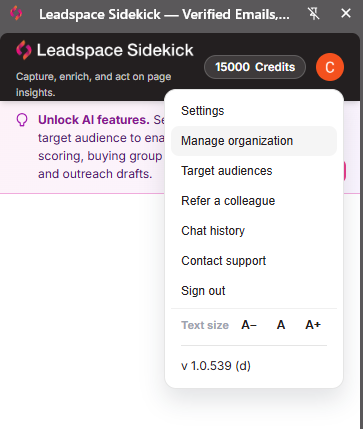
Open the Leadspace Sidekick Extension and select your profile icon, top-corner. Select Manage organization.
This will open the Admin portal, where you can manage the configuration and functionality of Sidekick for your users.
Teams
You can use teams to create groups of users that will be using Sidekick, and then invite colleagues to the teams so they can use Sidekick as part of your organization. For example, if you have Sales Teams in different regions, can you create a team per region or territory.
View and search existing teams.
Select + New Team button to create a team.
You can also control the target audiences, set integration options, and add users through each of your team cards. To do this, select the # members link on the team card.
Target Audiences: Manage the target audience for each team.
Integrations: Toggle off/on the integrations each team should have access to.
Add or invite a member by email: Add, remove, or move users to different teams. Users added here will receive an email invite to install Sidekick.
Note: Users that are already using Sidekick will be automatically added to your Enterprise Organization when created by Leadspace. This is a match using your company's business domain.
Target Audiences
Target audience creation powers a lot of the intelligence that make Sidekick such a valuable tool. A target audience is essentially an Ideal Customer Profile you can create that determines buying committee and overall fit data for the contacts you are researching on LinkedIn.
You can create as many Target Audiences as needed, and then assign to specific teams. This will cater the buying committee and fit score data presented to members of those teams when reviewing contacts using Sidekick.
Create Target Audiences
Select + New target audience button
Add a Name and define the Company Criteria for your target audience
Employee Size determines the size ranges of companies you typically work with
Revenue determines the ARR ranges
What Locations would you like to include in your audience?
What Industries would you like to add?
Add Personas is essentially your buying group roles you want to designate for your audience. You can add up to 4 personas per audience:
Influencer
Champion
Decision Maker
Blocker
Select a persona role and build out the Departments, Levels, and Titles that best define that persona for your audience
Multi-select from Leadspace's default list of Departments
Multi-select from Leadspace's default Seniority levels
Multi-select from a large list of Job Titles
If you would like to add another persona role to your audience, select + Add Persona and select one of the remaining roles
Select Create when finished
Allocate to Teams
Now that you have created target audiences, you can allocate them to the appropriate teams. This will ensure that only members of the team will see buying team and fit score data for contacts that meet the criteria of that target audience.
Select the Allocate to Teams option on the target audience
Toggle which teams you would like to have access to this audience
Export Restrictions
Export restrictions check every record a rep tries to export — to CSV or a CRM — against the minimum data quality you set here. Records below the bar are warned or blocked, depending on the enforcement mode.
Choose the Team to apply restrictions
Min contact fit: Contacts and Companies will be scored in Sidekick based on how well they fit the applicable Target Audience for the role. You can choose a minimum contact and company fit threshold here.
Min accuracy grade: Letter grade A+ to B- that indicates how confident we are in the email and phone data matched by Leadspace.
Opt-out CRM field: Optional - you can enter a field name from your CRM that indicates whether the contact has opted in to communication. This is linked to the CRM 'Sync In' functionality.
Enforcement: Allows you to restrict all exporting, provide a warning if thresholds are not met, or block if below thresholds.
Once selections are made, select Save export restrictions
Sync in
The sync in option allows your Salesforce Admin to authenticate their credentials and create a data sync in cadence from Salesforce to Sidekick.
This feature allows Sidekick to show users whether an email address or phone number for a contact you are reviewing is currently in CRM, or whether Leadspace has a different value compared to your CRM.
Connect your Salesforce Account. You will need a Salesforce Admin to authenticate their credentials and accept the terms during sign in.
Toggle on the Enable Sync in option
Choose the objects visible to the sync in. Recommendation is to enable Account, Lead, and Contact
Set your schedule: This can be manual only, hourly, daily, weekly, or can be set to a custom cadence. Recommendation is daily.
Configured your person and company LinkedIn URL column. This should be data directly from your CRM.
The Run Now button is only for 'manual only' sync cadence, and allows you to run the sync any time you like.
The History link shows the history of all sync in activity from CRM.
Budgets
Budgets cap how many credits (used to reveal emails, phones and other data) and how many exports a team can use each period. This gives Sidekick Admins full control over how teams spend credits, how many credits to provide, and how they can use them.
Model: Either set a per-user budget, or a shared team pool.
Cadence: Choose monthly or quarterly refresh period.
Credit cap / period: Total allowed team credits per period.
Credit cap / user: Total allowed per-user credits per period.
Contract ID: Used for rollover credits is selected.
Rollover: If toggled ON, carries unused credits into the next period. If toggled OFF, unused credits are lost when the period ends.
Usage
The usage tab allows Admins to view Sidekick credit consumption per team, per use, per period.
Team usage - current periods: Shows usage per team for total credits and exports
Usage detail: A more granular view of the usage. Look at all users from all teams, or select specific teams to view usage per-user.
Export-restriction overrides: When enforcement rules are set to 'Warn', shows user detail including date & time of a warning override. ie, a record was exported or pushed to CRM despite a fit score threshold warning.
Admins
Admins manage teams, target audiences, export restrictions, budgets, seats and other admins.
Admins allows you to add and remove users who can access the 'Manage Organization' options in Sidekick.
Company
Set your company identity via a few, quick details. This information is enriched by Leadspace and creates a complete company profile for Sidekick data intelligence.
Activity
Actions performed by your organization’s admins — team and member changes, target audiences, budgets, export-restriction settings, and co-admin grants.
Help & Support
If you have any questions, issues, or would simply like to talk about Sidekick or request a demo, please Submit a Support Ticket. You can also reach out to your CSM or AE directly for assistance.